Open Nuemed Pay
Have the login for your existing Stripe account ready. Nuemed Pay does not create a separate Nuemed account.
Using Nuemed Pay on Android? Start with the quickest checks for Stripe connection, Tap to Pay, reader pairing and payment status—or contact us when you need a person.
Connect Stripe and prepare for your first payment.
Read guidance →02Use Tap to Pay or resolve Bluetooth reader issues.
Read guidance →03Understand confirmed, processing and failed payments.
Read guidance →04Disconnect Stripe, request deletion or ask a privacy question.
Read guidance →Have the login for your existing Stripe account ready. Nuemed Pay does not create a separate Nuemed account.
Follow the Stripe connection flow and confirm the correct Stripe account before continuing.
Use Tap to Pay on a supported Android phone with no extra hardware, or charge and pair a supported Bluetooth reader.
Enter the amount, present the phone or reader and wait for a confirmed state before considering the payment complete.
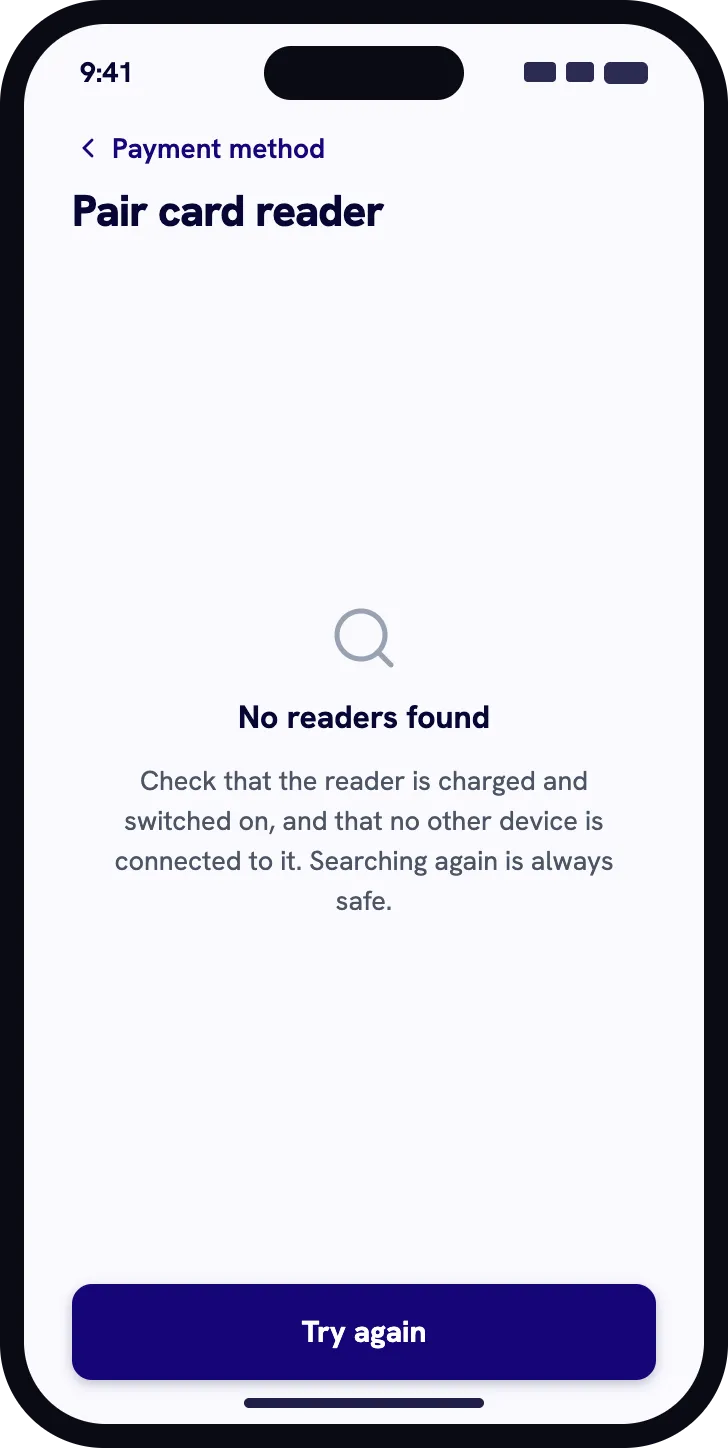
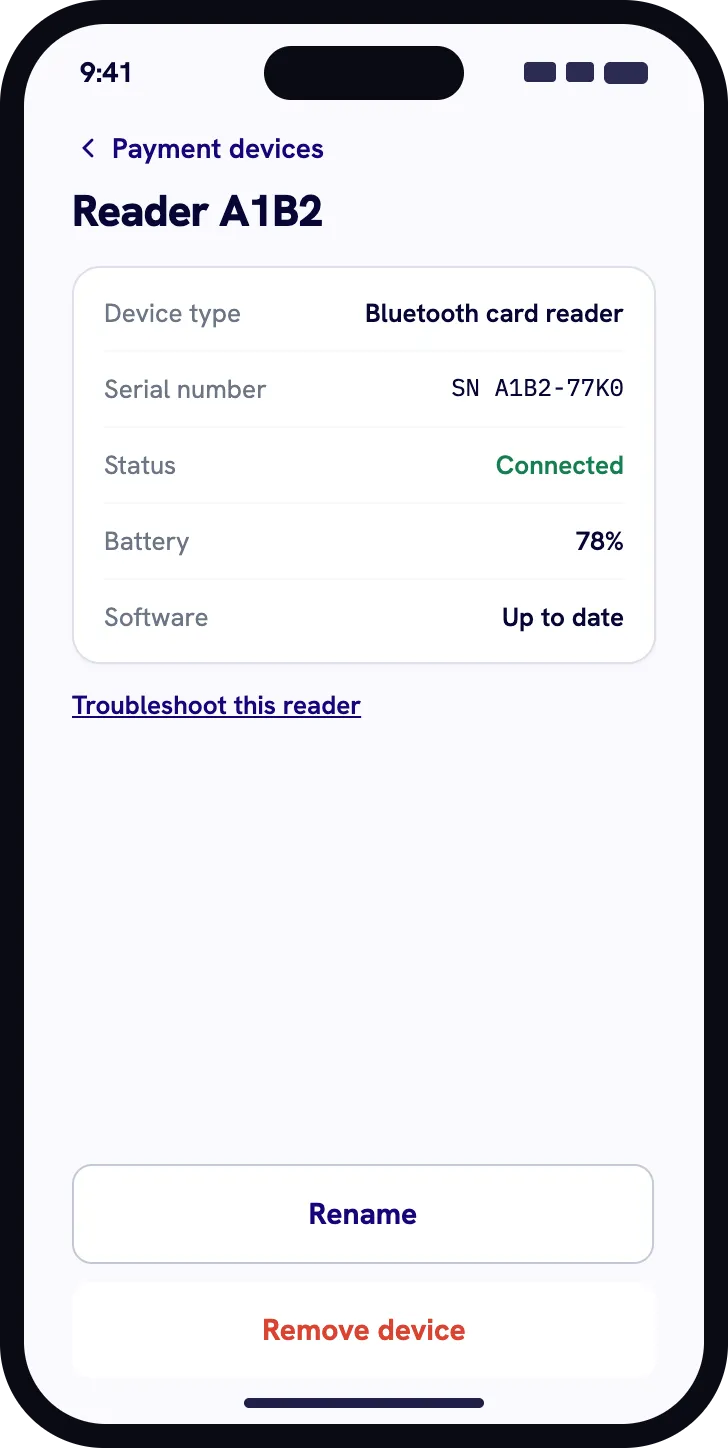
Tap to Pay needs no extra reader. For Bluetooth hardware, discovery is easiest when the reader is charged, awake, nearby and free to connect.
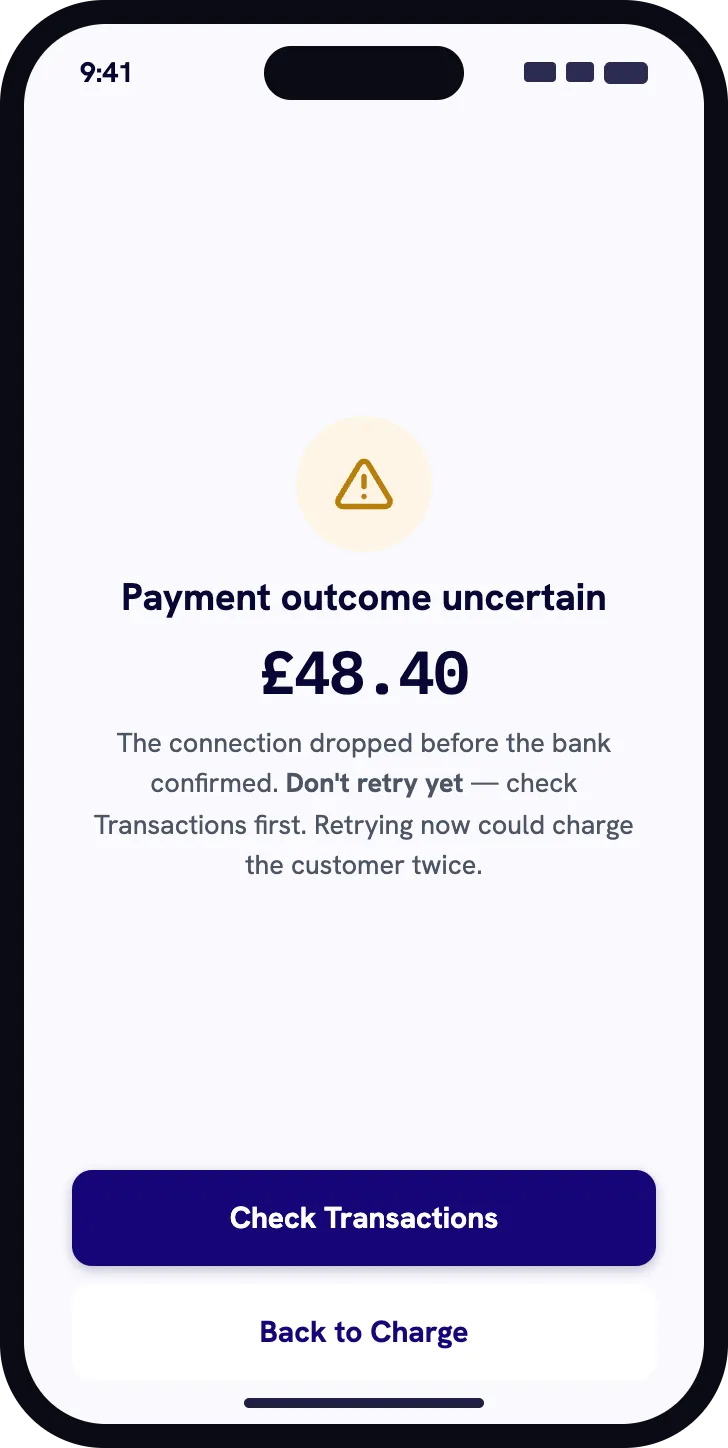
If an outcome is uncertain, check Transactions before starting another charge.
Keep the app connected and check transaction history. Do not start another payment while the outcome is unresolved.
Use the confirmed state as the source of truth before completing the customer interaction.
Check the connection and reason shown. Only retry after the first attempt has reached a final state.
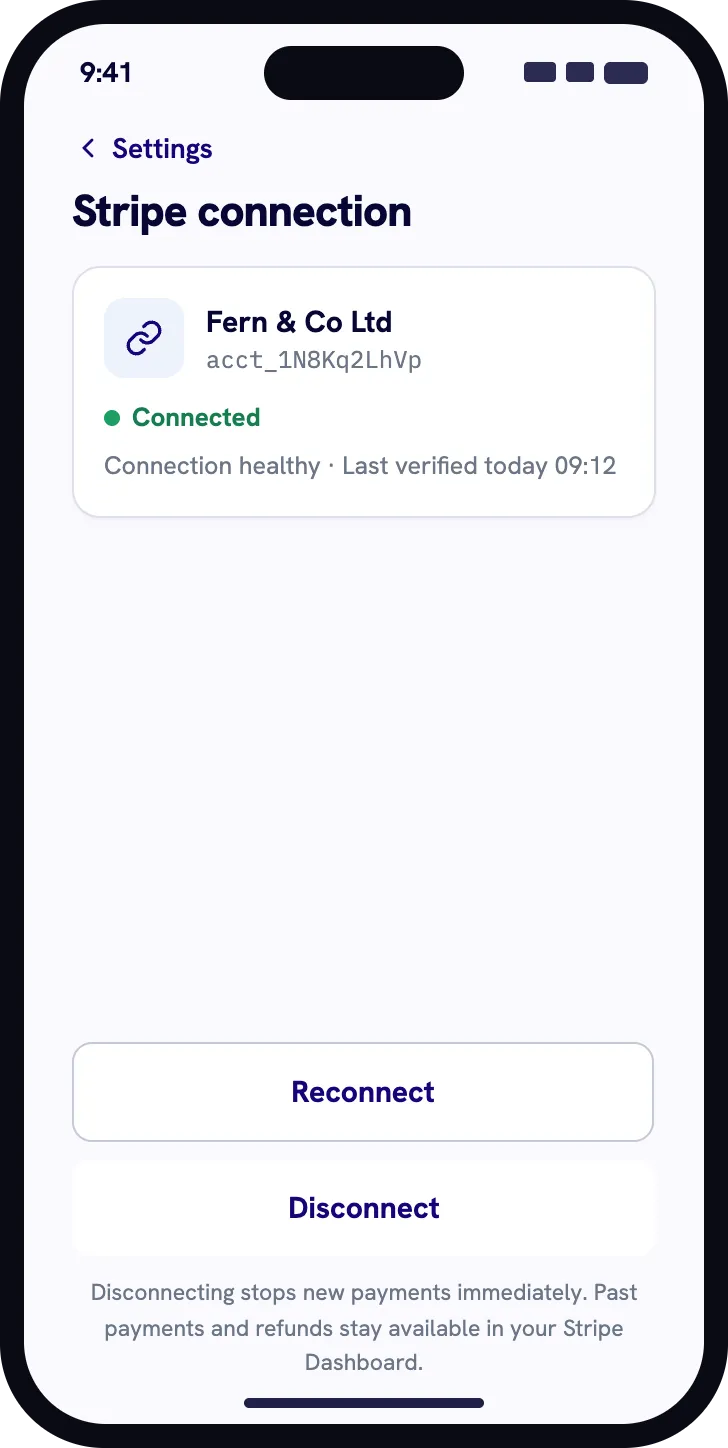
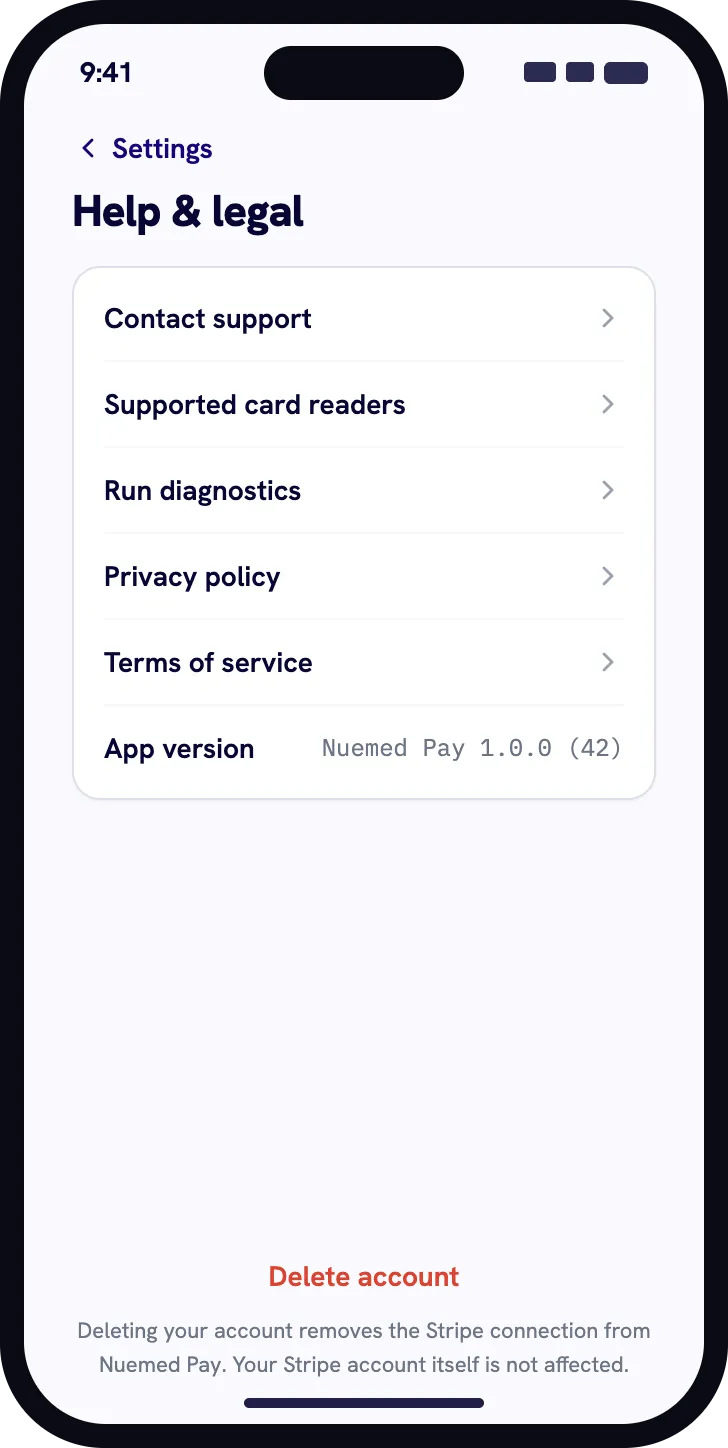
Nuemed Pay gives you one direct control to revoke Stripe access and delete the operational data held by Nuemed Pay. Your Stripe account and Stripe payment history stay in Stripe.
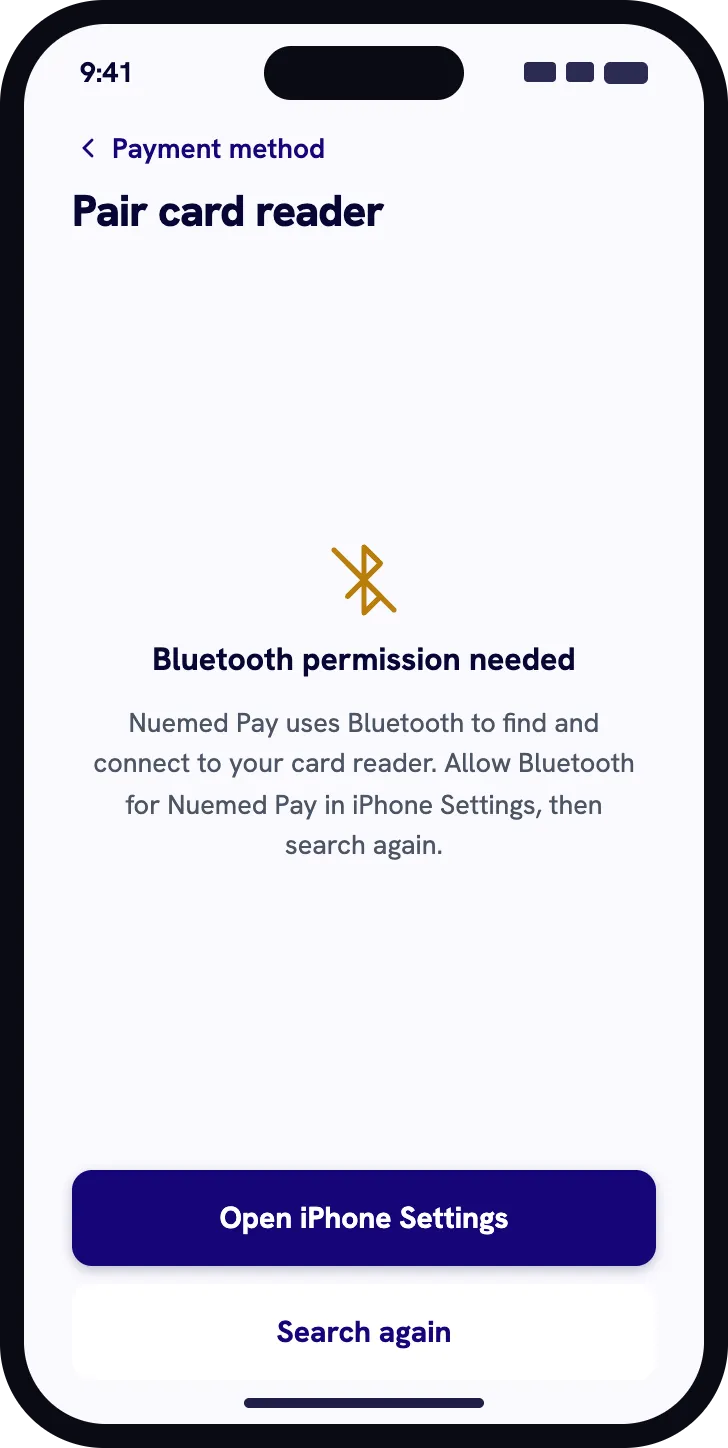
Check that the reader is charged, switched on and not connected to another device. Keep it close to your phone or tablet, allow Bluetooth access when prompted and try scanning again.
No. Reader availability varies by country, operating system and Stripe Terminal configuration. Use only a model listed as supported by Nuemed Pay for your launch market.
Read the payment state shown in Nuemed Pay, confirm that the reader and network are connected, then follow the message before trying again. Never treat a failed or cancelled payment as completed.
Open the successful payment in Transactions, choose the refund action and enter either the full or a partial amount. Confirm the amount before submitting the refund.
Open Settings, then Help & legal and choose Disconnect and delete Nuemed data. This revokes Nuemed Pay’s Stripe access and deletes its connection, device session and preferences. Your Stripe account and Stripe payment history remain in Stripe. For a privacy request, email privacy@nuemed.io.
Include the device type, operating-system version, reader model, payment state and what happened immediately before the issue. Never email full card details.